We have introduced a new feature to merge and split cases on the platform. You can access it in the List View of Unassigned, Ready to Assign, Posted and In Progress state by clicking the actions button on the most-right column.

Merge Cases
- After clicking on “Merge Case” from the actions drop down list, a pop-up will appear
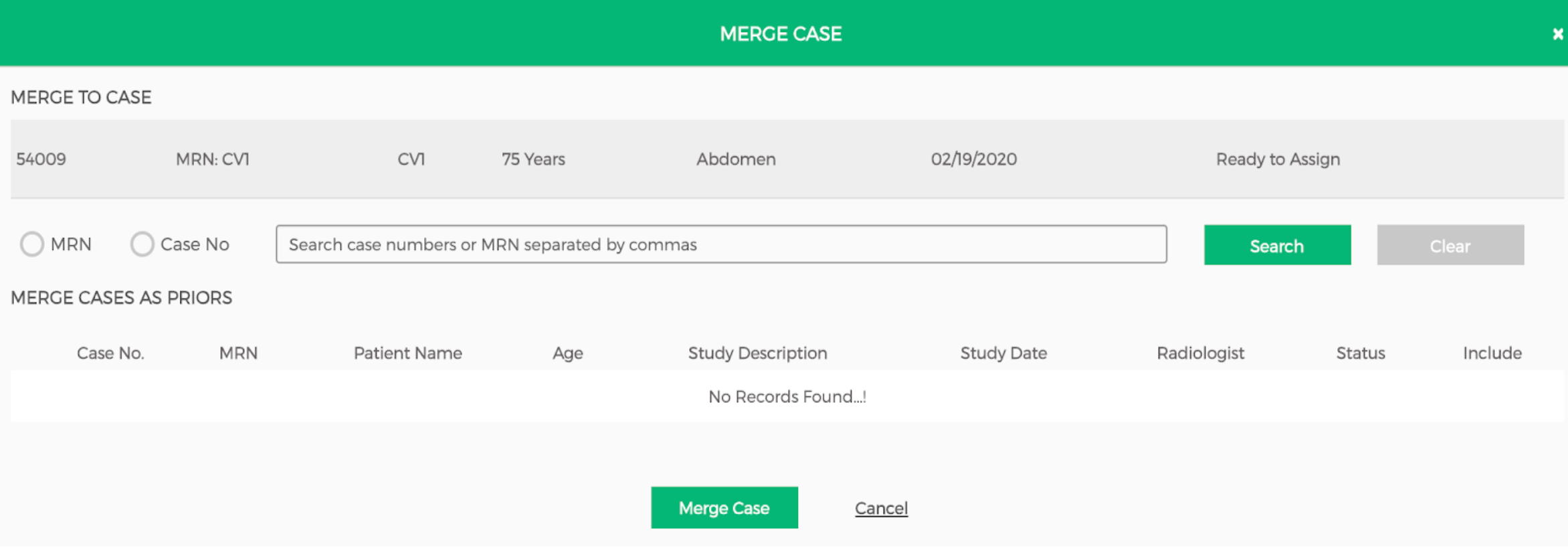
- The pop-up allows you to search a study using MRN number or Case Number
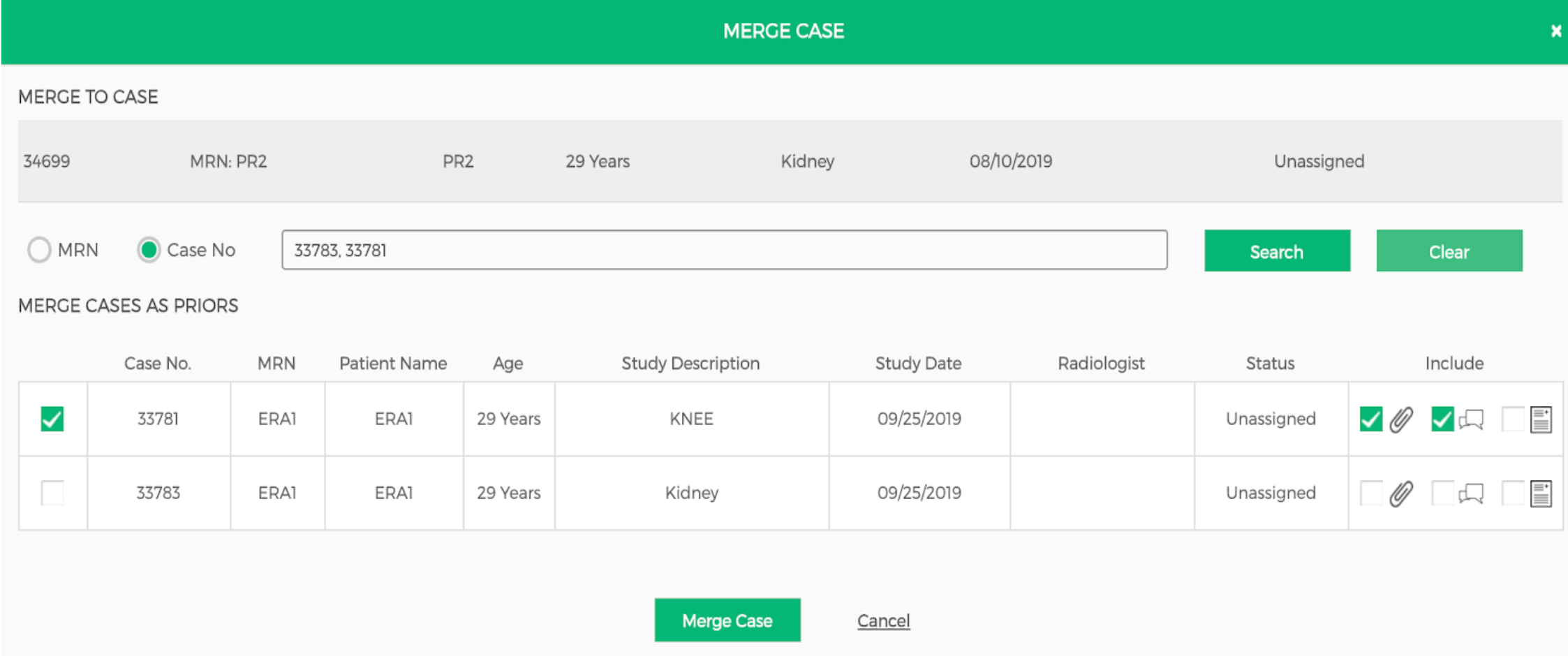
- Once the results show up, you have to select the checkbox on the left side to merge the study as a prior (shown above)
- You are also given the option to include specific content from a study - the attachments, the case collaboration messages and/or the reports
- If you would like to delete the case after it has been merged, check the delete icon (shown below) before clicking "Merge Case"

- Once you have made your selections, you can complete the action by clicking the “Merge Case” button
Note: You can merge multiple studies by typing the Case/MRN numbers in the search bar separated by commas (as shown in the screenshots).
Learn how to split cases here.
Comments
0 comments
Please sign in to leave a comment.